
Is Your Phone Being Watched? Study Case of Jeff Bezos And Pegasus By Rahmat Wibowo From Infraloka
How to detect covert surveillance through network traffic analysis — and the sobering lesson from the world's richest man being hacked through a single WhatsApp message.
Why This Matters To You
If the world's richest, most security-conscious individuals can be compromised through a single WhatsApp message — silently, invisibly, with no trace for months — then the question is not whether surveillance technology is being used broadly, but whether it is being used against you. This article teaches you how to look.
The Jeff Bezos Case: A Wake-Up Call for Everyone
In May 2018, Jeff Bezos — then the world's wealthiest person and owner of The Washington Post — received a WhatsApp message from Saudi Crown Prince Mohammed bin Salman (MBS). The two had exchanged numbers at a private dinner in Los Angeles.
The message appeared to contain a friendly video file. Bezos opened it. What he didn't know was that this single interaction would allow sophisticated military-grade spyware to silently infect his smartphone, exfiltrating gigabytes of his most private data over the following months.
Within hours of that message, forensic investigators later found that Bezos's phone began transmitting massive, anomalous volumes of data — data that should never have been leaving his device. Yet nothing appeared wrong on the surface. His phone worked perfectly.
"Large amounts of data were being exfiltrated from Bezos's phone beginning on May 1, 2018 — the same day he received the WhatsApp message from MBS."
— FTI Consulting Digital Forensics Report, 2020
APRIL 2018
Jeff Bezos and Saudi Crown Prince MBS exchange phone numbers at a Hollywood dinner hosted by media executives.
MAY 1, 2018 — DAY ZERO
MBS sends a WhatsApp message containing an encrypted video file. Bezos opens it. The Pegasus exploit is deployed silently in the background.
MAY 1 — MAY 2018
Within hours, Bezos's phone begins transmitting anomalous data — 4.22 GB exfiltrated in a single spike, representing a 2,968% increase in outbound traffic.
2018–2019
Spyware continues operating silently. Private messages, photos, and communications are siphoned out of the device for months. Bezos is unaware.
JANUARY 2020
UN Special Rapporteurs publicly announce the findings. FTI Consulting's forensic report is released, revealing the attack vector and the data exfiltration pattern.
2021 — AFTERMATH
NSO Group's Pegasus spyware is identified across 50,000+ phone numbers globally. Apple issues emergency patches. Journalists, activists, and heads of state found to be targets.
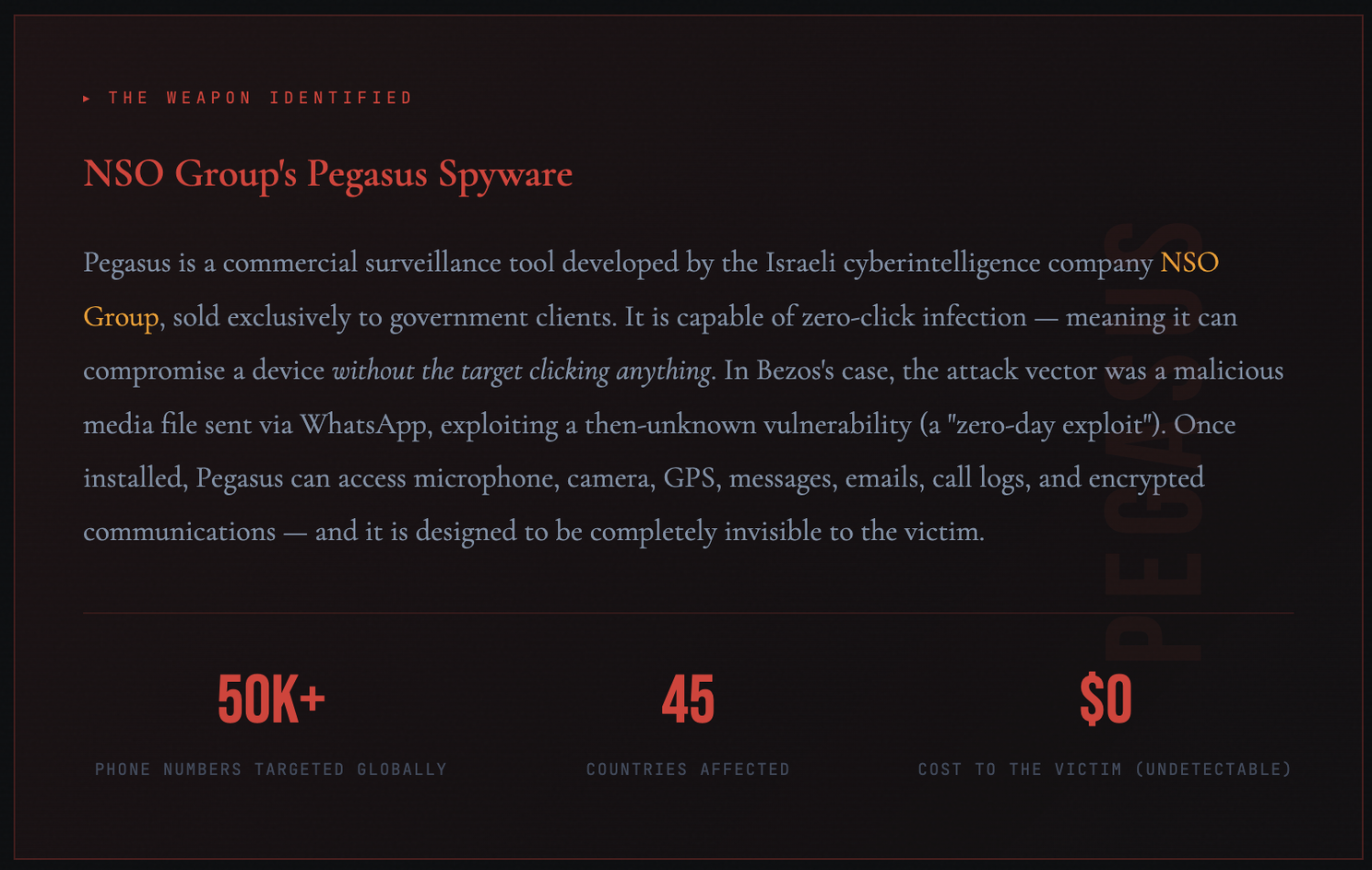
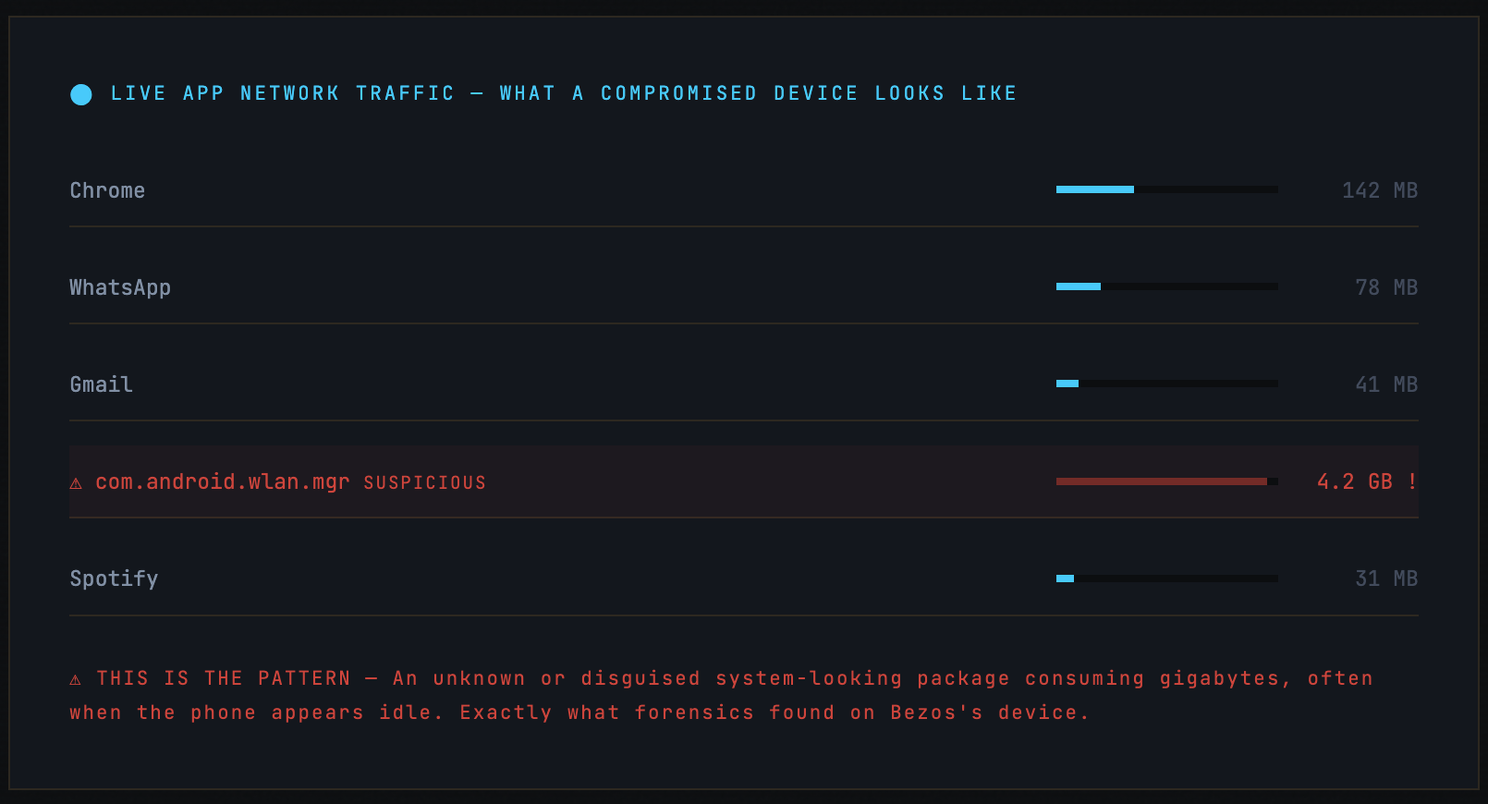
The lesson is not that you are necessarily a target of Pegasus — most people are not. The lesson is that abnormal network behavior is the most reliable fingerprint of covert surveillance software, whether it's military-grade spyware or a basic stalkerware app installed by someone with physical access to your device.
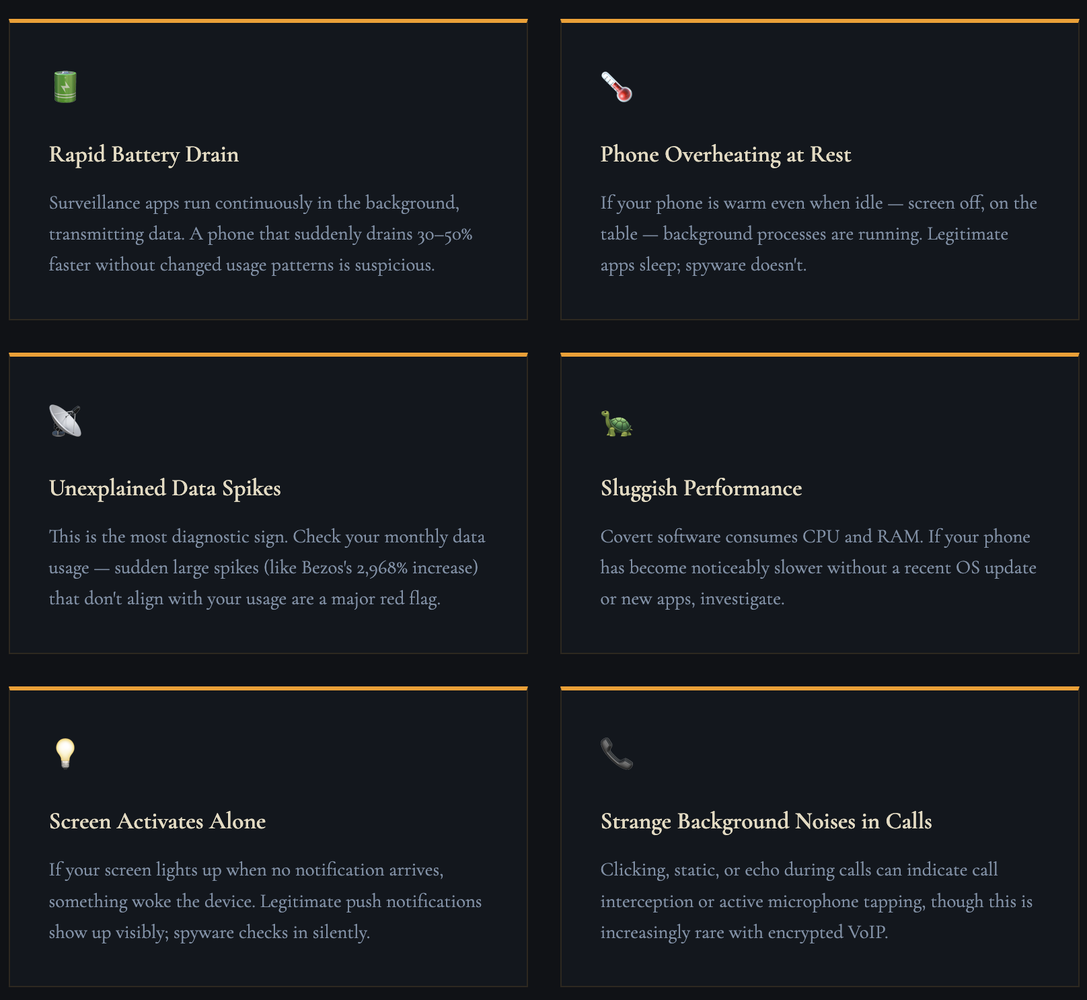
Warning Signs Your Phone May Be Compromised
Before diving into network checks, be aware of these behavioral indicators. They don't confirm surveillance, but they warrant investigation:
Checking Network Usage on Android
Android gives you granular, built-in tools to inspect per-app network consumption. Here's the full investigation path:
- Open Built-In Data Usage MonitorGo to Settings → Network & Internet → Data Usage → App Data Usage. This shows you every app's mobile data consumption. Change the time period to "Last 30 days" for a full picture. Look for any app consuming data you don't recognize or that seems disproportionate to its function.
- Check Background Data SeparatelyTap any suspicious app and look at the Background Data figure specifically. Surveillance apps transfer data when your phone is "idle." An app sending hundreds of MB in the background is nearly always suspicious — legitimate apps do not need to do this.
- Inspect Wi-Fi Usage SeparatelyGo to Settings → Network → Wi-Fi Data Usage. Spyware often waits until Wi-Fi is available to upload large amounts of collected data. Compare your Wi-Fi data per app — a "Flashlight" or "Calculator" app sending gigabytes over Wi-Fi is a serious indicator.
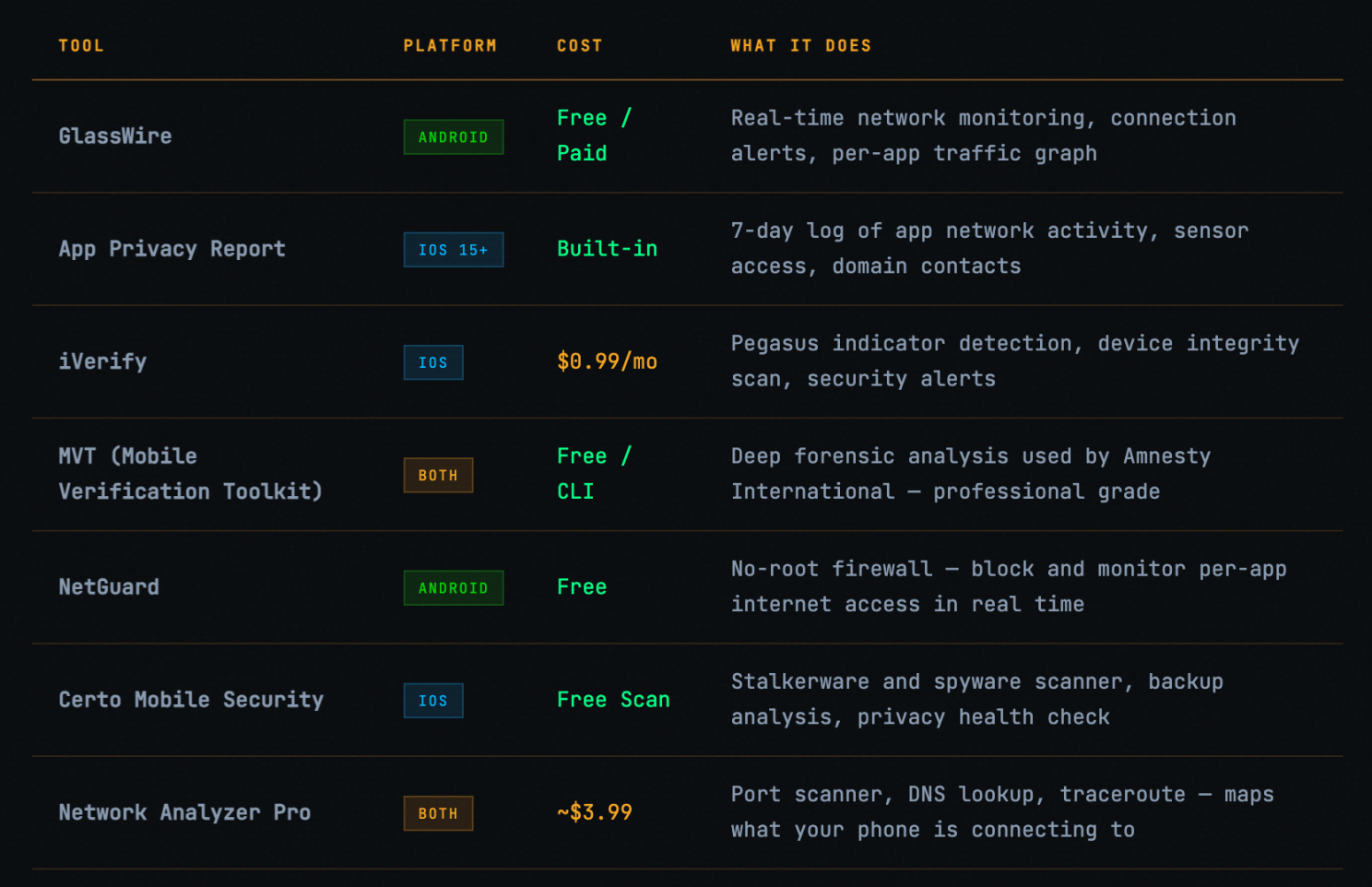
- Use GlassWire for Real-Time MonitoringGlassWire (free tier available) provides a real-time network activity graph. It shows which apps are connecting to the internet right now, their destination IP addresses, and alerts you to new app activity. Install it, then leave your phone idle for 30 minutes and observe what connects.
- Advanced: Use ADB Network Stats (Developer Mode)If you're technically inclined, enable Developer Mode (tap Build Number 7 times in Settings → About Phone) and run these commands via Android Debug Bridge from a computer:
adb shell — Android Debug Bridge
Connect your Android phone via USB with USB debugging enabled adb shell # View all network interface statistics shell cat /proc/net/dev # View per-UID (per-app) network traffic stats shell cat /proc/net/xt\_qtaguid/stats # Get real-time data usage snapshot shell dumpsys netstats # List all running services — look for unknown names shell$ dumpsys activity services | grep -i "running" # RED FLAG: Any service you don't recognize with active network connections Unexpected service detected: com.android.system.monitor / active
Checking Network Usage on iPhone
Apple's iOS gives you less granular access than Android but provides powerful privacy tools built directly into the OS. Here's the complete investigation protocol:
- Check Cellular Data Usage Per App: Go to Settings → Cellular and scroll down to see every app's cellular data consumption. The critical step: note when you last reset these statistics (shown at the very bottom as "Reset Statistics"). If you've never reset them, this reflects data since your last iOS restore — still useful for spotting outliers.
- Reset Statistics and Monitor Over 48 Hours: Scroll to the bottom of the Cellular page and tap Reset Statistics. Then use your phone normally for 48 hours. Return and review. Any app in the top 5 that you didn't actively use during that period deserves investigation.
- Enable App Privacy Report (iOS 15+): Go to Settings → Privacy & Security → App Privacy Report and turn it on. After 7 days, this will show you every app's network activity, which domains it contacted, and which sensors (microphone, camera, location) it accessed — and when. This is one of the most powerful privacy tools available on any mobile OS.
- Review Background App Refresh Abusers: Go to Settings → General → Background App Refresh. Check which apps have this enabled. An app that you rarely open but has Background App Refresh on and high data usage is a significant concern — legitimate apps don't need constant background access if you're not using them.
- Check for Unknown Device Management Profiles: Go to Settings → General → VPN & Device Management. If you see any profiles you didn't install yourself (from your employer's IT department, for example), something has been configured on your device without your knowledge. This is a critical red flag — spyware deployed via MDM (Mobile Device Management) profiles can bypass many iOS protections.
- Run Apple's Lockdown Mode Assessment: iOS 16+ includes Lockdown Mode (Settings → Privacy & Security → Lockdown Mode). This is Apple's nuclear option — it severely restricts phone functionality but blocks virtually all known spyware vectors, including the class of zero-click exploits used against Bezos. If you believe you are a high-risk target, enable it.
iVerify / MVT — iOS Forensic Tools
Mobile Verification Toolkit (MVT) — used by Amnesty International # to analyze Bezos's device. Run from macOS/Linux: pip install mvt # Create an encrypted iPhone backup via iTunes/Finder first, then: mvt-ios check-backup --iocs indicators.stix2 ~/Library/Backup/[DEVICE_ID] # Run full network analysis on backup mvt-ios check-backup --all-yes ~/Library/Backup/[DEVICE\_ID] --output ~/mvt\_results # Review generated reports — look for: - processes.json → Unknown background processes - net\_base.json → Suspicious domains contacted - sms.json → Exploitation via message (like Bezos) - timeline.json → Chronological device events # iVerify (App Store, ~1): Simpler automated scan # Detects Pegasus indicators and device integrity violations
Recommended Monitoring Tools
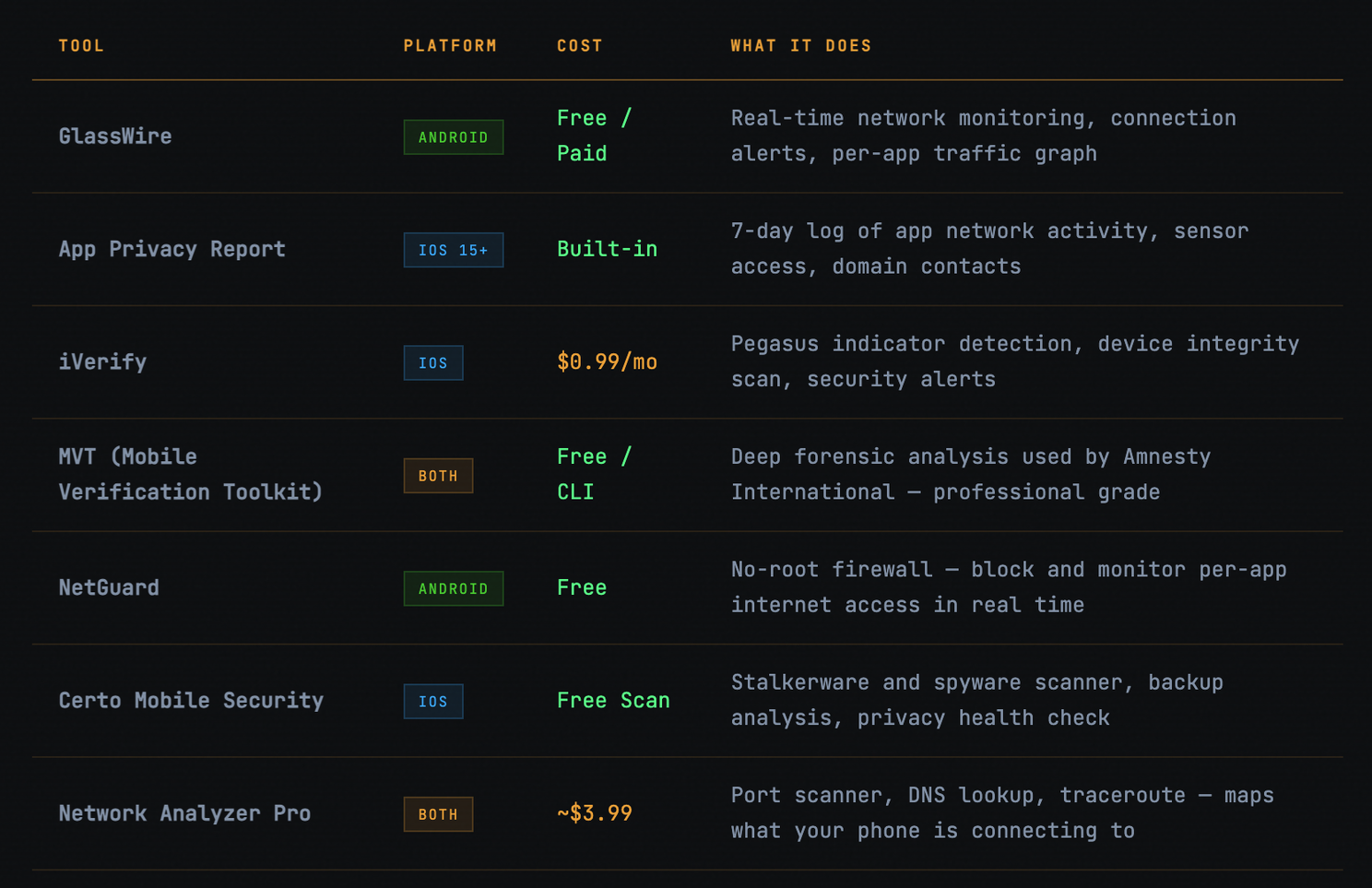
These tools have been vetted by the security community for network visibility and device integrity checking:
If You Suspect Surveillance: What to Do
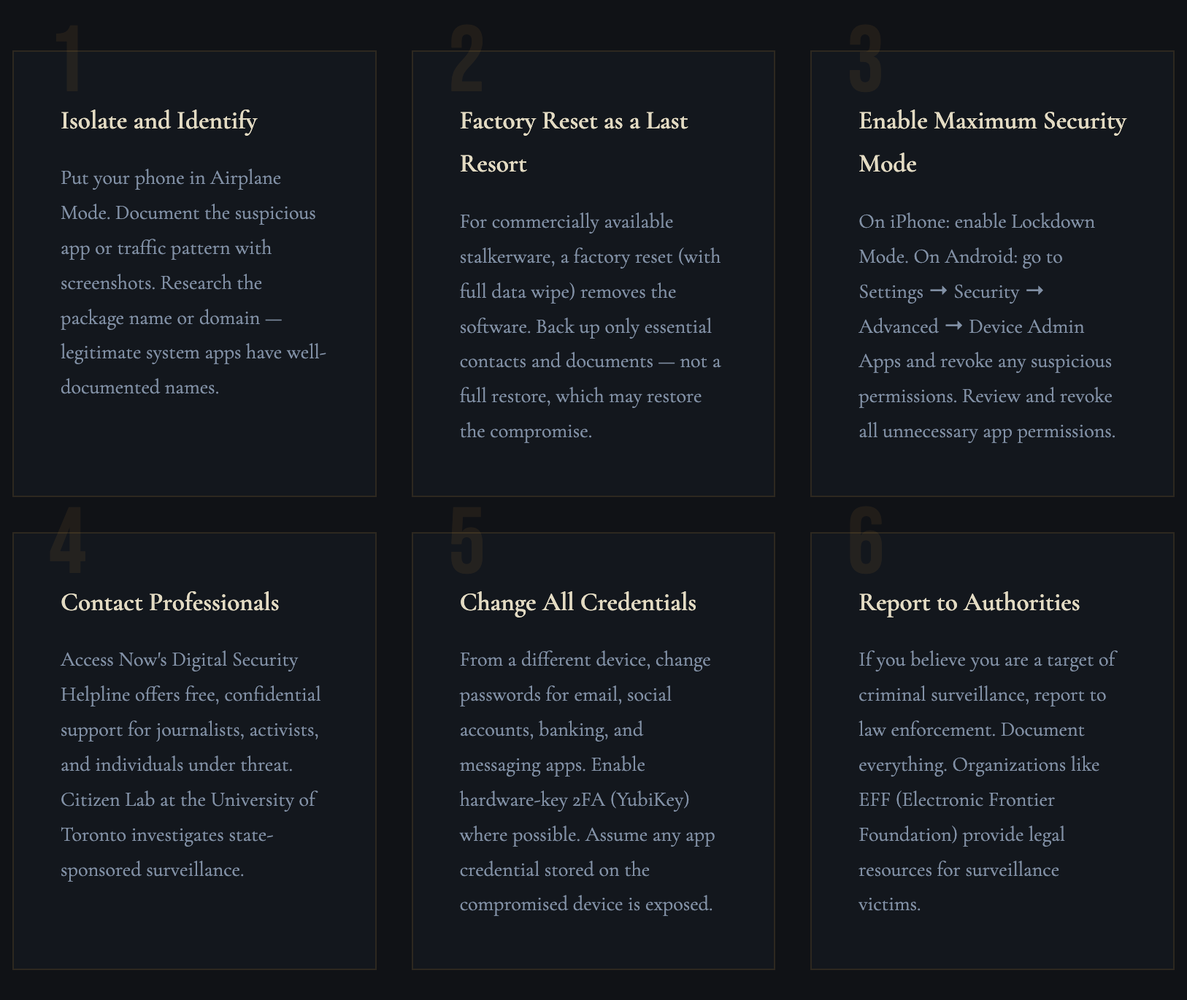
Finding suspicious network activity doesn't automatically mean military-grade spyware — it could be aggressive advertising SDKs, a misbehaving app, or legitimate analytics. But here's the escalation path:
Pegasus compromised the phone of the world's richest man. The vector was a single multimedia message. You don't have to be famous to be vulnerable — you have to have something someone wants.
— Security Principle: Anyone Can Be A Target
#CyberSecurity#Privacy#DigitalSafety#MobileSecurity#Pegasus#Spyware#Android#iOS#JeffBezos#NSO Group#NetworkSecurity#InfoSec