
How to Build Your Own Cloud Gaming Setup with Windows RDP & Tailscale By Rahmat Wibowo From Infraloka
Stream games from your home PC to any device, anywhere — no subscription fees, no latency surprises.
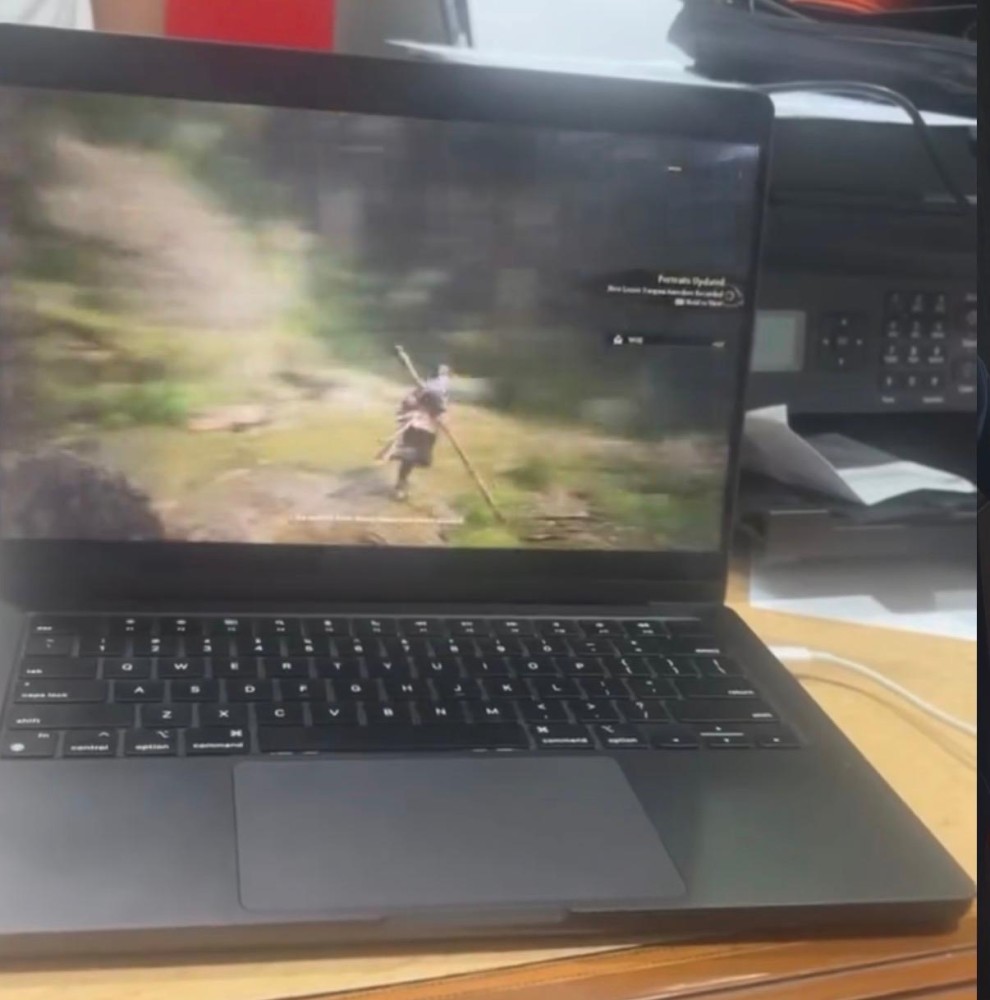
The image was me playing wukong from a Macbook 36 km away from the server at home
Commercial cloud gaming services like GeForce NOW and Xbox Cloud Gaming are convenient, but they come with trade-offs: game library limits, monthly costs, and shared infrastructure. What if you could use your own GPU — the one already sitting on your desk — and stream games to any device from anywhere in the world?
With Windows Remote Desktop Protocol (RDP) and Tailscale (a zero-config VPN built on WireGuard), you can do exactly that. This guide walks you through the full setup.
"Think of it as GeForce NOW, but it's your GPU, your games library, and your rules."
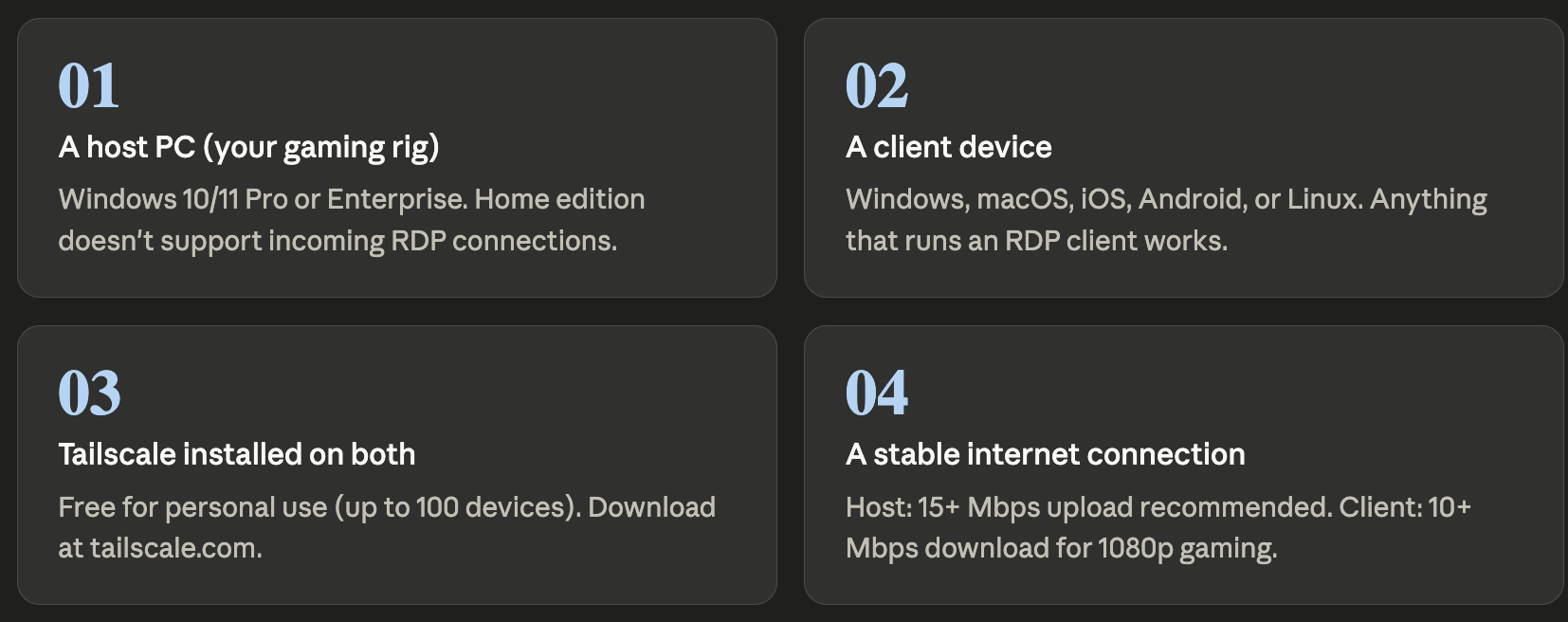
What you'll need
Before we start, make sure you have the following:
How it works: the architecture

Tailscale creates an encrypted peer-to-peer tunnel between your devices, assigning each one a stable private IP (in the 100.x.x.x range). RDP then runs over that tunnel — no port forwarding, no public IP exposure needed.
Step 1 — Enable Remote Desktop on your host PC
Go to Settings → System → Remote Desktop and toggle it on. Make sure your Windows account has a password set (RDP requires it).
Important: Windows Home edition does NOT support hosting RDP connections. You'll need Pro, Enterprise, or Education. Upgrade or use a third-party solution like RDP Wrapper.
You can verify it's working locally first by connecting from another app on the same machine to localhost.
Step 2 — Install and connect Tailscale
On both your host PC and client device, download Tailscale from tailscale.com and sign in with a Google or GitHub account. Once both devices are logged into the same Tailscale account, they'll appear in your Tailscale admin console with their Tailscale IPs.
Host machine Tailscale IP: 100.x.x.10 Client device Tailscale IP: 100.x.x.11 # Verify connectivity from the client: ping 100.x.x.10
You should see successful ping replies. If so, the tunnel is up.
Step 3 — Connect via RDP over Tailscale
Open the Remote Desktop client on your client device. On Windows, search for Remote Desktop Connection. On macOS, use Microsoft Remote Desktop from the App Store.
In the hostname/IP field, enter your host's Tailscale IP address:
Computer: 100.x.x.10 Username: YourWindowsUsername
Click connect, enter your password, and you should be inside your PC's desktop.
Tip: In the RDP client settings, crank up "Color depth" to 32-bit and enable "RemoteFX" or hardware acceleration if available. This makes a noticeable difference for gaming visuals.
Step 4 — Optimize for gaming
Vanilla RDP wasn't designed for gaming, but a few tweaks close the gap considerably:
Display config — Set resolution to match your client screen. Avoid scaling mismatches.
Audio redirection — Enable "Play on this computer" under local resources so game audio streams to your client.
Bandwidth — Set connection speed to "LAN (10 Mbps or higher)" in RDP options for best visual quality.
Input latency — Tailscale's direct P2P routing minimizes hops. If latency is still high, check that Tailscale is using direct connection (not relayed) in the admin panel.
Game mode — Keep your host PC's GPU drivers up to date and enable Windows Game Mode for consistent frame pacing.
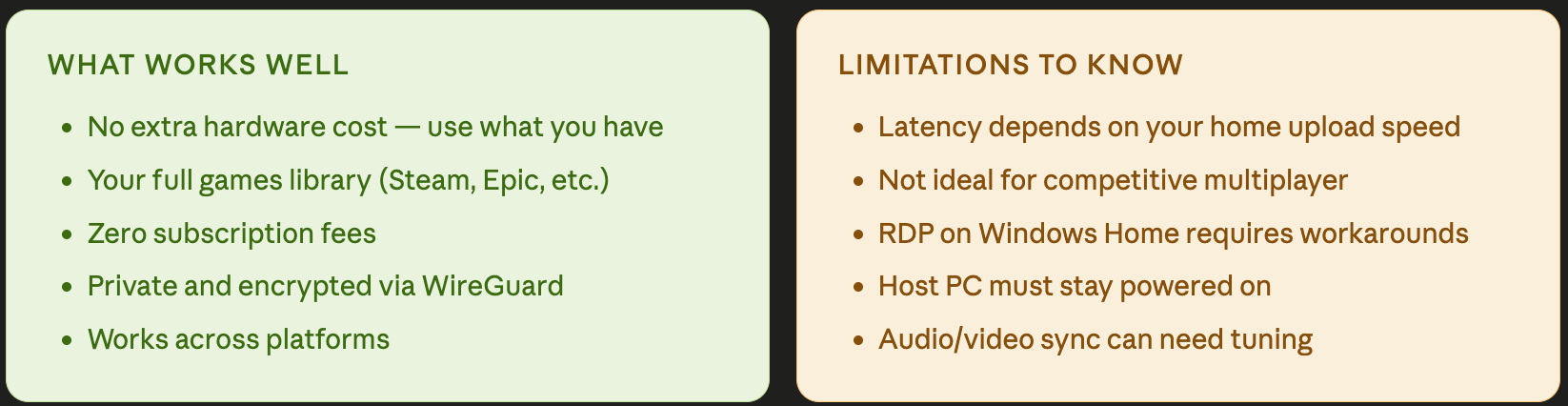
Honest trade-offs
Going further
Once you have the basics working, a few upgrades unlock even better performance:
Sunshine + Moonlight — A free, open-source game streaming stack that uses NVIDIA's NVENC or AMD's AMF encoders for far lower latency than RDP. Pairs perfectly with Tailscale for the networking layer.
Wake-on-LAN via Tailscale — Set up your host to wake from sleep remotely so you don't have to leave it running 24/7.
Tailscale exit nodes — Route all your client traffic through your home PC, useful for accessing local network resources while gaming away from home.
The real magic here is Tailscale. It removes almost all the networking complexity that used to make self-hosted remote access a pain — no dynamic DNS, no port forwarding, no VPN server to maintain.
Cloud gaming doesn't have to mean renting someone else's hardware. With your own PC, a free Tailscale account, and 30 minutes of setup, you have a private, high-performance streaming setup that goes wherever you do.
Have questions about the setup or hit a snag? Drop it in the comments — happy to help troubleshoot.
#CloudGaming#Tailscale#WindowsRDP#Networking#Homelab#Gaming#SelfHosted